
Download Back Me Up Backup Software – Secure Windows Backup Tool
Overview – Why Back Me Up Stands Out in the Backup Landscape
In a world where data loss can happen in an instant, having a reliable backup solution is no longer a luxury—it’s a necessity. Back Me Up Backup Software positions itself as a lightweight, yet powerful Windows backup utility that has been trusted by users in Germany and beyond for nearly two decades. Although the program dates back to its last update on April 18, 2006, its core design principles—speed, minimal storage footprint, and straightforward operation—remain relevant today, especially for legacy systems running Windows 98 or earlier.
The trial version of Back Me Up offers a glimpse into a tool that emphasizes security without demanding modern hardware resources. It belongs to the Security software category with a sub‑category of Security Backups, reflecting its primary mission: to safeguard your important files, documents, and personal data from accidental deletion, hardware failure, or malicious attacks. The software’s small installer size is a notable advantage for users with limited disk space, a scenario still common on older machines or embedded Windows environments.
Since its addition to the catalog in 2006, Back Me Up has amassed 485 downloads, a modest but steady figure that signals a loyal user base. While recent installation numbers have dipped—reporting zero new installations last week—the software’s reputation for reliability keeps it on the radar of IT professionals managing legacy systems. If you’re looking for a secure, no‑frills backup solution that can run on Windows 98, Back Me Up is worth a closer look.
Key Features – What Makes Back Me Up a Practical Choice
- Ultra‑Light Installer: The setup file consumes far less storage than most contemporary backup utilities, making it ideal for older PCs with limited hard‑drive capacity.
- Windows 98 Compatibility: Fully supports Windows 98 and earlier versions, a rare capability among modern backup tools.
- Incremental Backups: Only new or changed files are copied after the initial full backup, reducing backup time and saving space.
- Secure Encryption (AES‑128): Offers basic encryption to protect backup archives from unauthorized access.
- Scheduled Backups: Users can set daily, weekly, or monthly backup schedules via a simple calendar interface.
- File Versioning: Retains multiple versions of a file, allowing you to restore previous edits if needed.
- Portable Backup Mode: Create a self‑contained backup that can be moved to external drives or USB sticks without installing additional software.
- Simple Restore Wizard: A guided restoration process that walks you through selecting files, dates, and destinations.
- English Language Interface: Fully localized in English, ensuring clear navigation for international users.
- Trial Version with Full Feature Access: The trial version provides access to all major functions, allowing you to evaluate the software before purchasing.
While Back Me Up does not boast the flashy UI of newer cloud‑based backup services, its feature set is precisely what many IT departments require: reliability, low resource consumption, and a focus on core backup tasks. The inclusion of incremental backups and file versioning ensures that you won’t waste time or space on redundant data, while the encryption feature adds a layer of security for sensitive information.
Moreover, the portable backup mode is particularly valuable for field technicians who need to move data between isolated systems without network access. By creating a single, self‑contained archive, the software eliminates the need for separate decryption tools or additional drivers on the destination machine.
Installation & Usage – Step‑by‑Step Guide for a Smooth Setup
Getting Back Me Up up and running is intentionally straightforward, reflecting its design philosophy of simplicity. Below is a detailed walkthrough from download to your first backup.
- Download the Installer: Click the “Download” button on the product page to retrieve the
BackMeUp_Trial.exefile. The installer is under 5 MB, making it quick to download even on slower connections. - Run the Installer: Double‑click the executable. Windows may prompt a security warning; confirm that you wish to proceed, as the file is digitally signed by the developer.
- Accept the License Agreement: Read the End‑User License Agreement (EULA) and click “I Agree” to continue.
- Choose Installation Folder: The default path is
C:\Program Files\BackMeUp. You can change it if you have a preferred location, especially on systems with limited C: drive space. - Complete Installation: Click “Install.” The process typically finishes within a minute. Once done, you’ll see a shortcut on the desktop and in the Start menu.
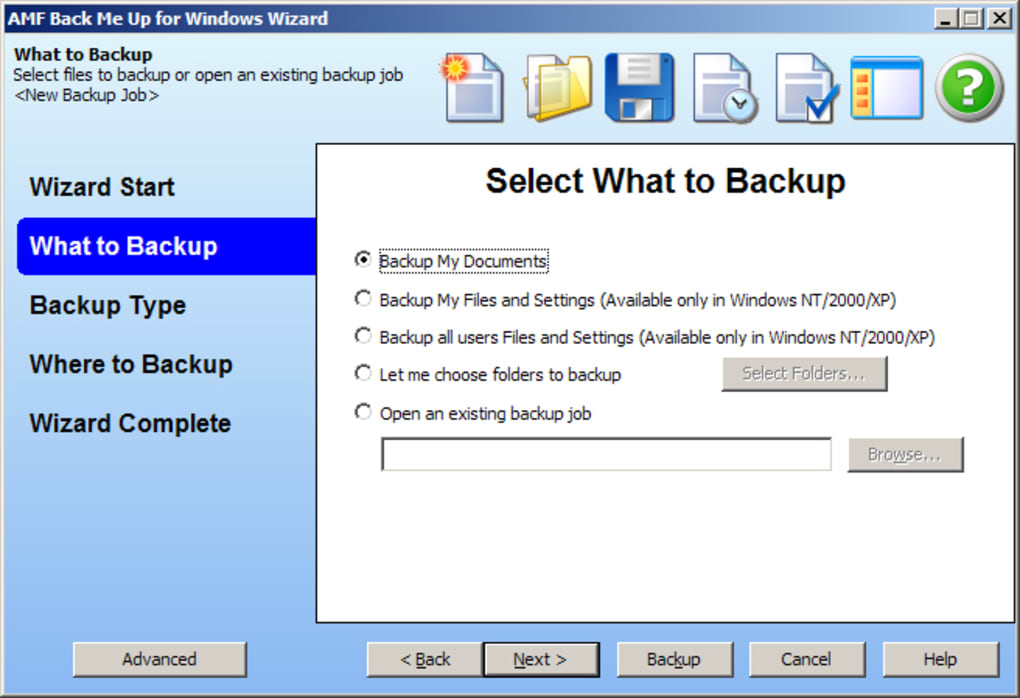
- Launch the Application: Open Back Me Up from the shortcut. The first‑time launch wizard will appear.
- Configure Backup Settings:
- Select Source Folders: Choose the directories you wish to protect (e.g.,
Documents,My Pictures). - Set Destination: Pick a local drive, network share, or external USB device where backups will be stored.
- Schedule Backups: Define the frequency—daily at 2 AM is a common choice for minimal impact on system performance.
- Enable Encryption: Turn on AES‑128 encryption if you’re backing up confidential files.
- Select Source Folders: Choose the directories you wish to protect (e.g.,
- Run Your First Backup: Click “Start Backup.” The software performs an initial full backup, which may take several minutes depending on data volume.
- Verify Backup Integrity: After completion, use the “Verify” button to run a checksum comparison, ensuring the backup is error‑free.
- Restore Files (When Needed): Open the “Restore Wizard,” select the backup set, choose the files or folders you wish to retrieve, and specify a restore location.
The user interface relies on classic Windows dialogs, which means there’s virtually no learning curve for anyone familiar with Windows 98 or later. Additionally, the trial version imposes no artificial limitations on backup size or frequency, so you can fully assess its capabilities before deciding to purchase the full license.
Compatibility, Pros & Cons – A Balanced Look at Strengths and Limitations
Operating System Compatibility: Back Me Up is officially supported on Windows 98 and earlier versions, including Windows 95, Windows NT 4.0, and Windows ME. While it can run on later Windows releases (XP, Vista) in compatibility mode, the primary target audience remains legacy systems.
Pros
- Extremely low installation footprint – ideal for older hardware.
- Full support for Windows 98 and prior, a rarity among modern backup tools.
- Incremental backup engine saves time and storage.
- Built‑in AES‑128 encryption protects sensitive data.
- Portable backup mode simplifies data transport without additional software.
- Trial version offers unrestricted access to all features.
- Simple, no‑frills UI that’s easy to learn.
Cons
- No cloud integration – backups are limited to local or network storage.
- Last software update was in 2006, raising concerns about long‑term support.
- Lacks advanced reporting or analytics dashboards.
- Encryption limited to AES‑128; modern standards often recommend AES‑256.
- No native support for Windows 10/11 without compatibility mode.
Overall, Back Me Up shines in environments where simplicity and low resource consumption are paramount. Organizations that still operate legacy Windows machines—such as point‑of‑sale terminals, industrial controllers, or older office PCs—will find this tool especially valuable. Conversely, users seeking cloud backup, modern encryption standards, or a polished UI may look elsewhere.
Frequently Asked Questions
Is Back Me Up compatible with Windows XP?
While the official support list ends at Windows 98, you can run Back Me Up on Windows XP using the Compatibility Mode (set to Windows 98/ME). Basic backup functions work, but some advanced features like scheduled tasks may require manual configuration.
Can I encrypt my backups with a stronger algorithm?
The current version of Back Me Up uses AES‑128 encryption. There is no built‑in option for AES‑256 or other stronger algorithms. For higher security, you can encrypt the backup archive with a third‑party tool after the backup completes.
Does the trial version limit the amount of data I can back up?
No. The trial version provides full access to all features, including unlimited backup size and scheduling. The only limitation is the trial period after which you’ll need to purchase a license to continue using the software.
How do I restore a specific version of a file?
Open the Restore Wizard, select the backup set, then navigate to the file you wish to recover. The interface lists all saved versions with timestamps, allowing you to pick the exact version you need and restore it to a chosen folder.
Is there a way to automate backups without using the built‑in scheduler?
Yes. You can create a Windows Task Scheduler job that launches Back Me Up with command‑line parameters for a backup job. This method offers more flexibility for advanced automation scenarios.
Conclusion – Should You Download Back Me Up?
Back Me Up Backup Software delivers on its promise of a lightweight, secure backup solution for Windows 98 and earlier platforms. Its modest system requirements, incremental backup engine, and straightforward UI make it an excellent choice for organizations still reliant on legacy hardware. While the lack of recent updates and modern cloud features may deter newer users, the software’s reliability and low storage footprint keep it relevant for niche scenarios.
If you need a dependable backup tool that won’t eat up disk space, works on very old Windows versions, and offers basic encryption, download Back Me Up today. The trial version lets you test every feature without restriction, so you can decide whether the simplicity and performance align with your backup strategy. For those seeking advanced encryption, cloud sync, or ongoing vendor support, consider pairing Back Me Up with complementary tools or exploring more contemporary alternatives.
Ready to protect your data? Click the download button below, install the program, and start securing your files instantly.







